
Source candidates
A guide to getting candidates into your roles, whether you want the AI sourcing assistant to find them for you or you already have their CVs ready to add.
There are two ways to add candidates to a role. Use the AI sourcing assistant when you need to go and find people, searching the web or your existing talent pool. Drop CVs in directly when you already have them, whether they arrived by email, from a colleague, or saved from an event.
The assistant searches for candidates through conversation, then lets you refine what it finds before adding anyone to your pipeline. It works in three steps.
Navigate to a role in First and click the AI Sourcer button. You’ll find it in the top right hand side of the role management page.

The assistant greets you with context about the role you’re working on. To get started quickly, click one of the shortcut buttons: Source new candidates to search the web, or Find candidates from existing roles to search your talent pool.
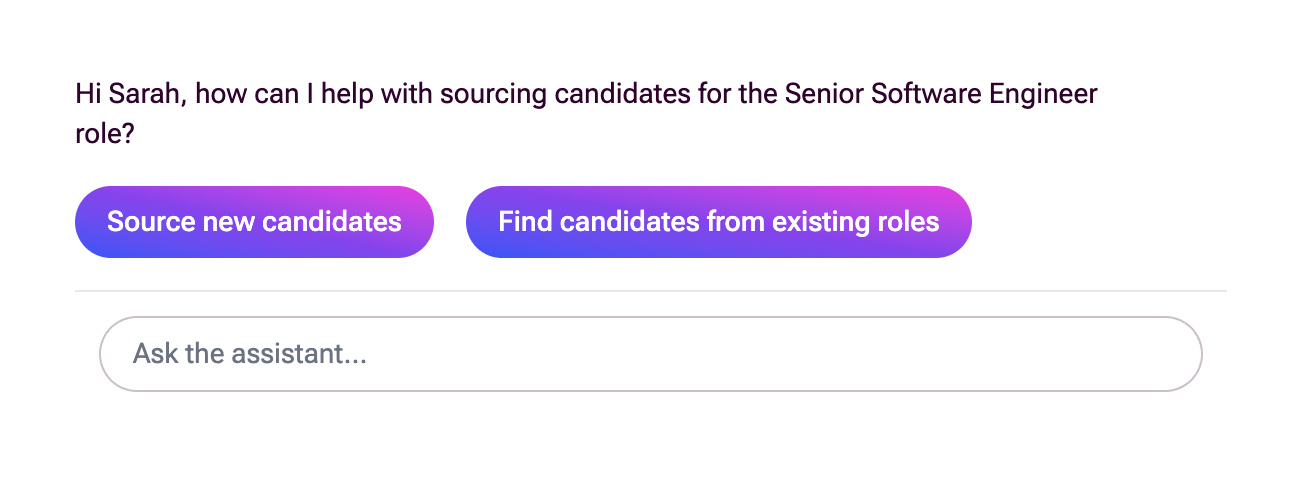
The assistant gives you two ways to find candidates: searching your existing talent pool and searching the web. You can use either or both, and refine results through conversation.
Search existing candidates▼
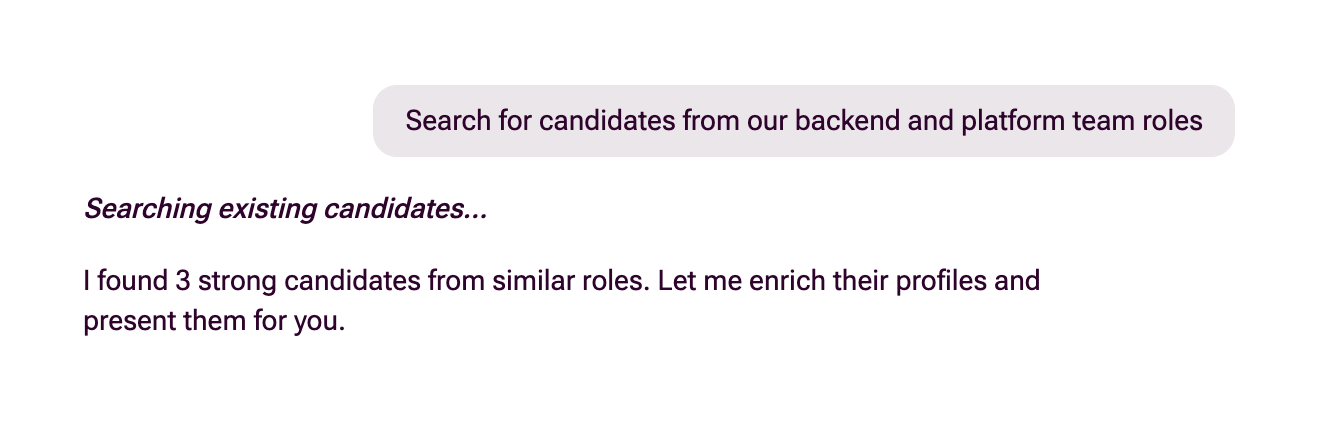
Ask the assistant to look through candidates who have applied to other roles in your organisation. It matches roles with similar outcomes and responsibilities to find people who fit.
Example prompts to get started:
- “Find candidates similar to those who applied for our backend role”
- “Search for people who applied to marketing roles”
- “Look for strong candidates from our platform team roles”
It will not re-surface candidates already sourced for this role. Candidates from existing roles arrive with their assessment data from previous applications.
Search the web▼
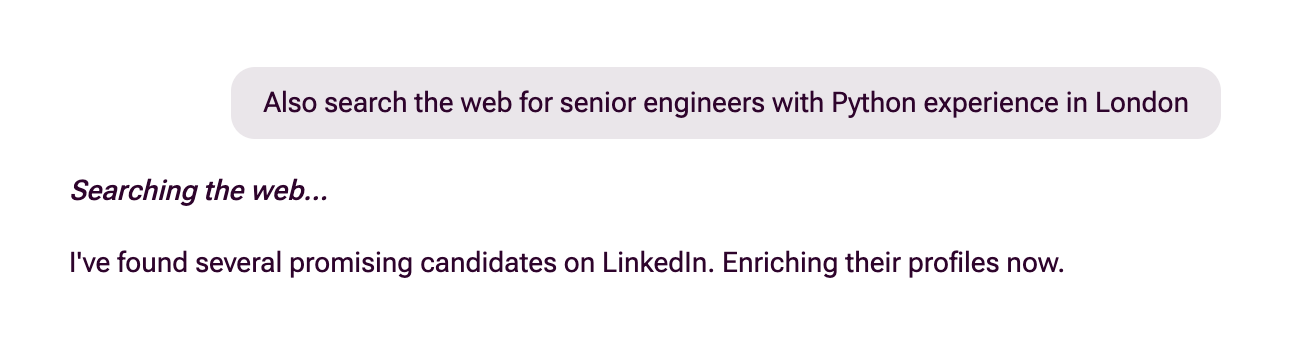
Ask the assistant to find candidates on the web using Google X-Ray searches. It searches across LinkedIn, GitHub, personal sites and more.
Example prompts to get started:
- “Find me software engineers with 5+ years Python experience in London”
- “Search for product managers with fintech background”
- “Look for data scientists on LinkedIn in Manchester”
It can run several searches to build up a pool, and it enriches profiles before presenting them to you.
Refine your search through conversation▼
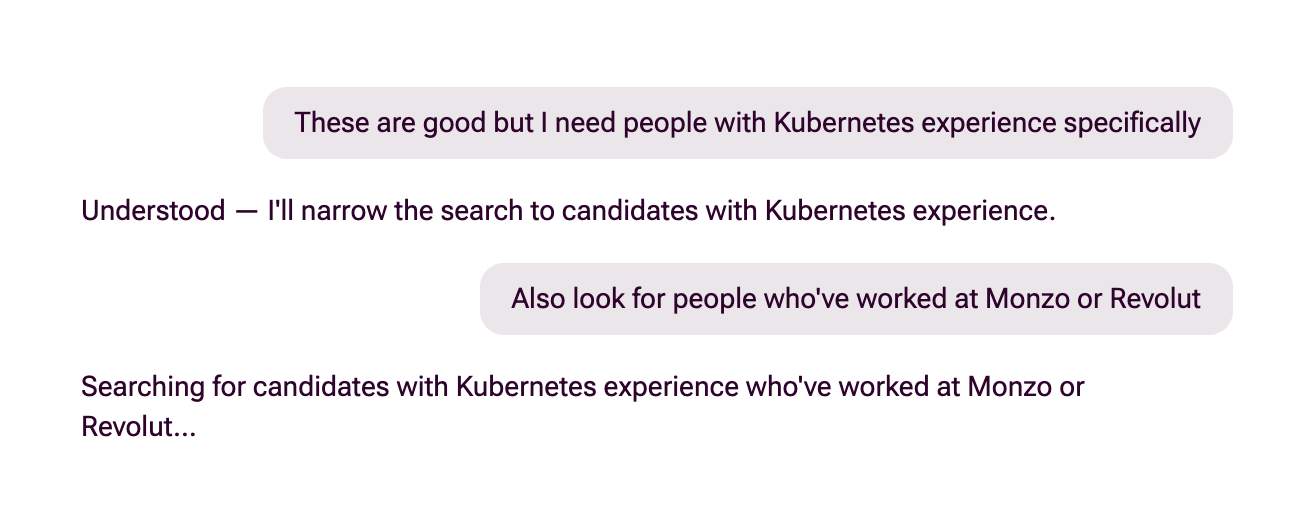
The assistant is conversational, not a one-shot search. You can iterate and steer towards exactly the candidates you need:
- Narrow by location: “Focus on candidates based in Manchester” or “Expand the search to include the whole of the North West”
- Target specific companies: “Look for people who’ve worked at Deliveroo, Monzo, or Revolut” or “Find candidates from Big Four consulting firms”
- Hone into requirements: “I need someone with Kubernetes experience specifically” or “Prioritise candidates who’ve led teams of 10+”
- Broaden when results are thin: “That’s too narrow, try removing the education requirement” or “Include people with adjacent experience like DevOps”
- Combine both searches: “Search existing candidates from our platform team roles, then also look on the web for SREs in London”
- Iterate on results: After seeing candidates, you can say “More like candidate 3” or “These are too senior, find mid-level instead”
The assistant remembers the conversation, so you do not need to repeat yourself.
Review enriched profiles▼
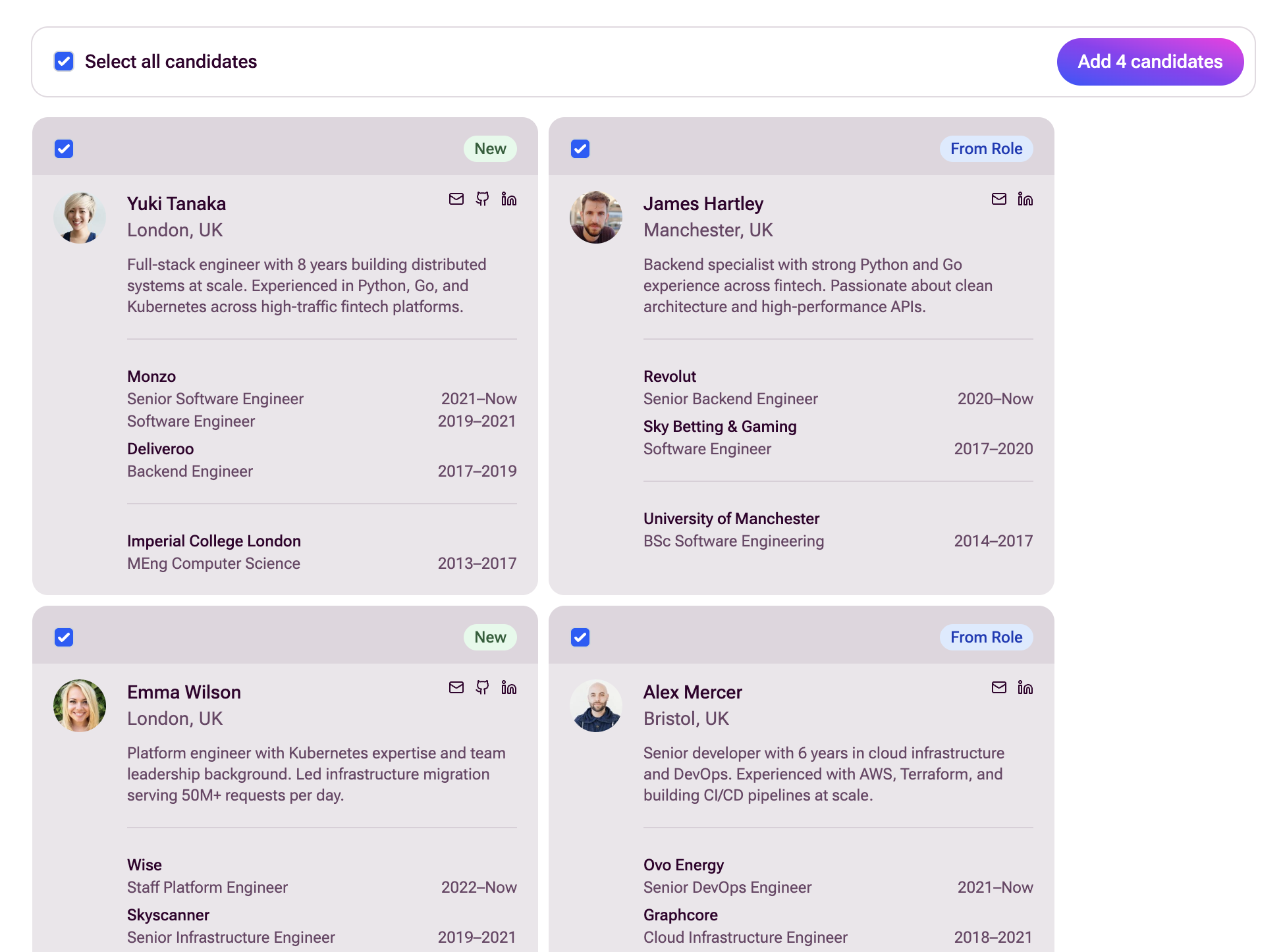
Enriched profiles include full name, location, a short summary, work history with dates, education history, and contact links (email, LinkedIn, GitHub, Twitter where available).
Candidates appear as cards. A badge shows where each one came from: New for web-sourced candidates or Applied before for candidates from your talent pool.
If the results aren’t right, just ask for more candidates or refine the search.
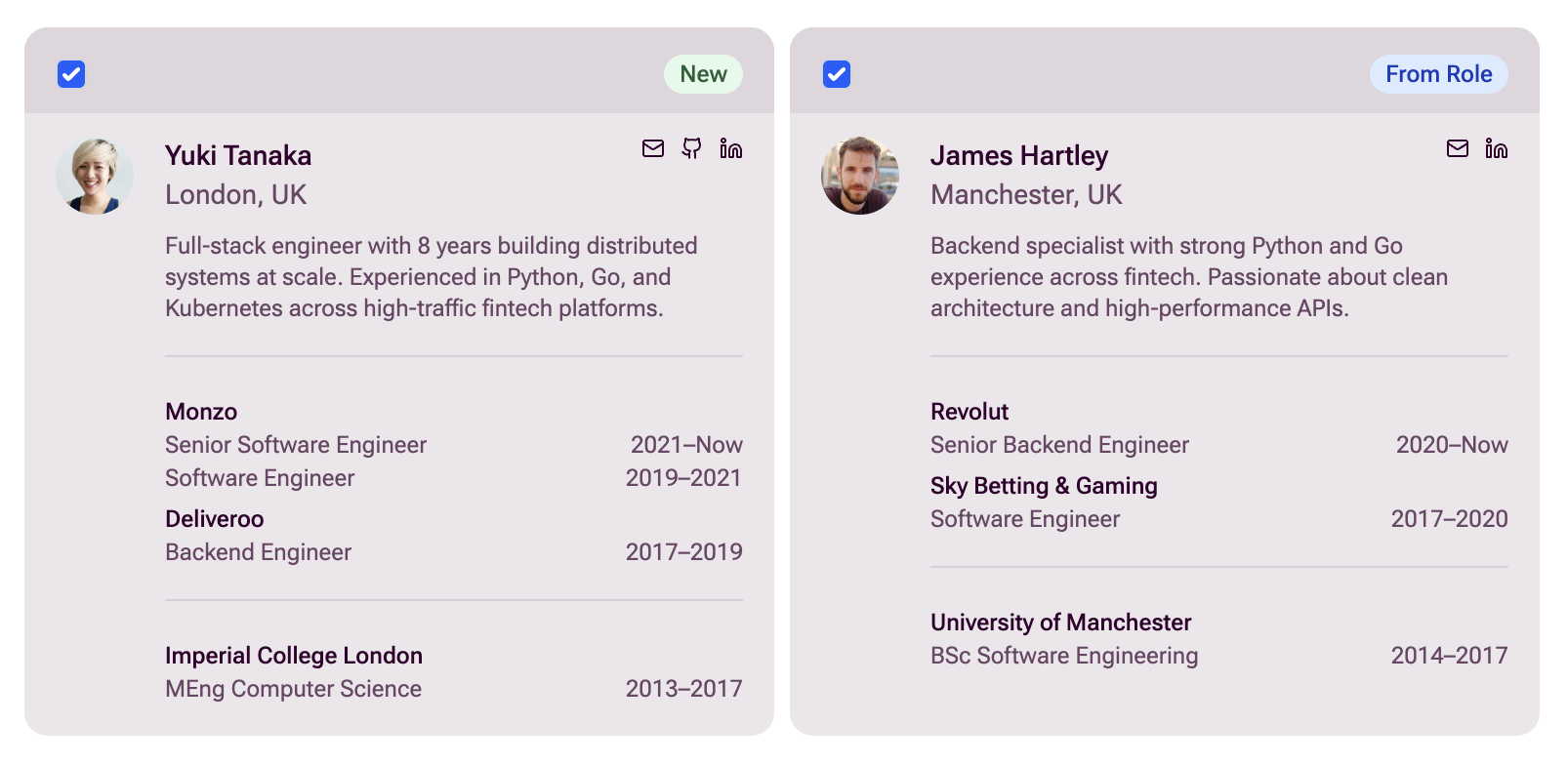
Tick the candidates you want, then click Add to pipeline to add them all at once.
- Web-sourced candidates: get a new application with their enriched data and a CV generated from their work and education history.
- Existing candidates: their application is copied across, keeping previous assessment data.
Added candidates sync to your ATS if one is configured. The assistant checks for duplicates by email, so you won’t add anyone twice.
Sometimes you already have a candidate’s CV instead of needing to search for them. Someone might have emailed it to you, a colleague might have passed it on, or you might have a folder of them saved from an event.
Go to the role’s applications page and drag the files anywhere onto it. A drop area appears reading “Drop CVs to add candidates”. Drop your files there. First accepts .pdf, .docx, .rtf, .txt, .md and .html files, up to 20 at a time.
The candidates land in the role’s inbox and are submitted automatically once First has processed them. That means they are screened against the role’s criteria like any other applicant, rather than sitting as drafts for you to submit.
Any questions or suggested improvements for the guide?
Get in touch at support@first.cx