
Publish your role
Open the role to applications, decide who can see it, and close it when you are done.
A role does not receive applications until you publish it. Until then, First shows it as not yet published and tells you to publish it to start receiving applications. The button to look for is Publish role.
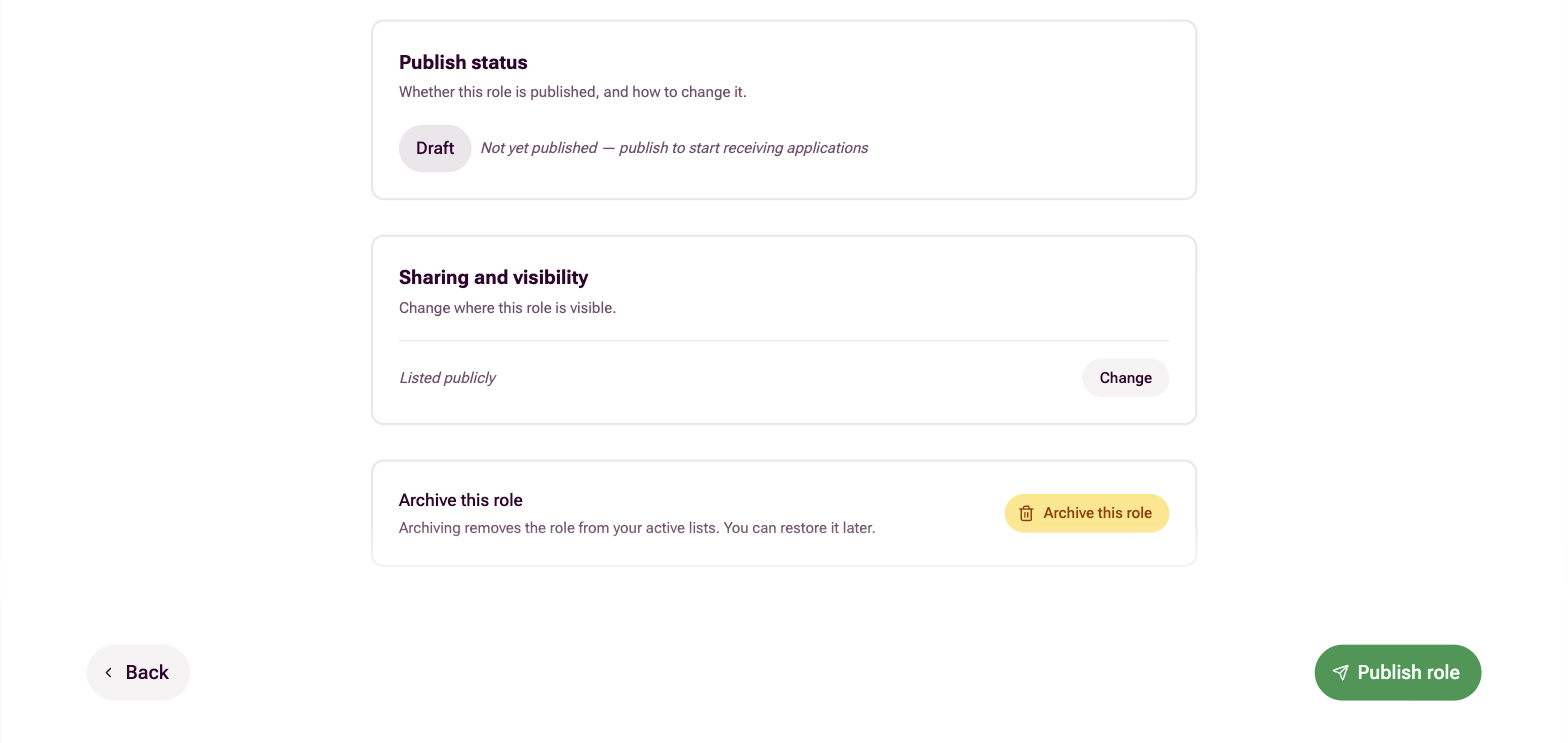
Opening a role may be restricted to organisation owners. If you do not have those rights, you will see that you cannot do this yourself, and will need to ask an organisation owner to publish it for you. Once it is open, candidates can apply.
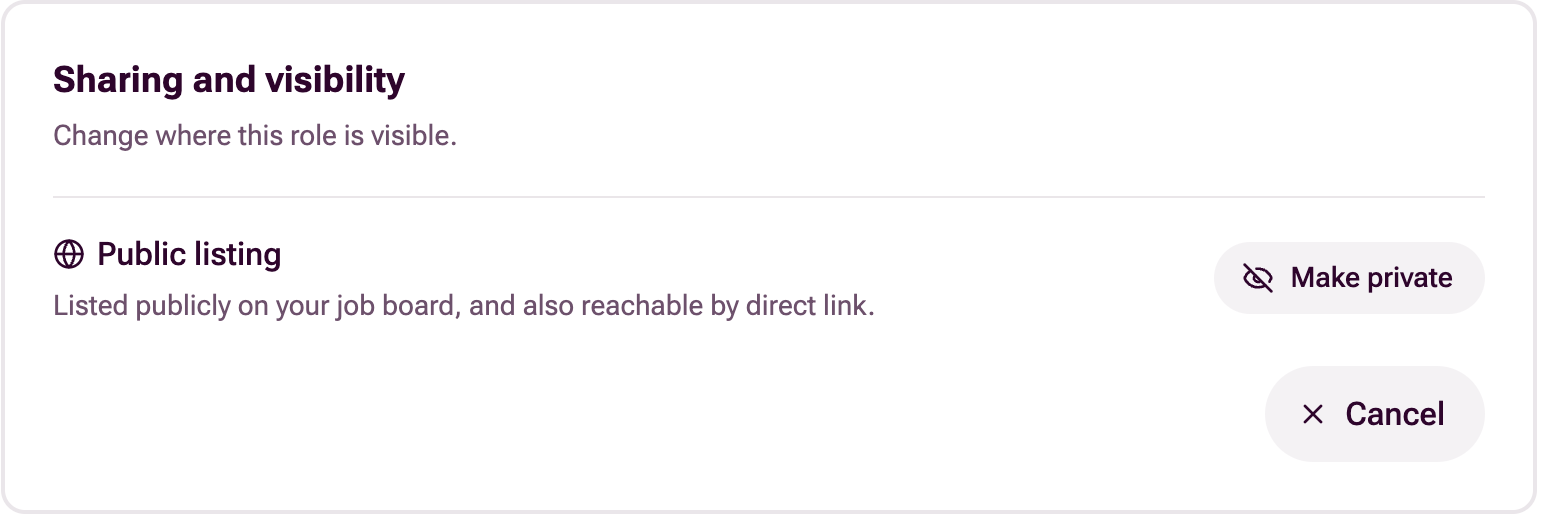
A role is either listed publicly or private. Under Sharing and visibility First shows you which it is now, and one button switches it to the other. A public role is listed on your job board and is also reachable by direct link. Pressing Make private takes it off your job board, so only the people you send the link to can find it. Pressing Make public puts it back.
Either way you can copy the role’s link from First and share it directly.
Closing a role stops applications. First then shows applications as closed for that role. If you would rather keep taking applications while pausing the work of assessing them, pause the role instead. Candidates can still apply, but assessment is paused until you resume it.
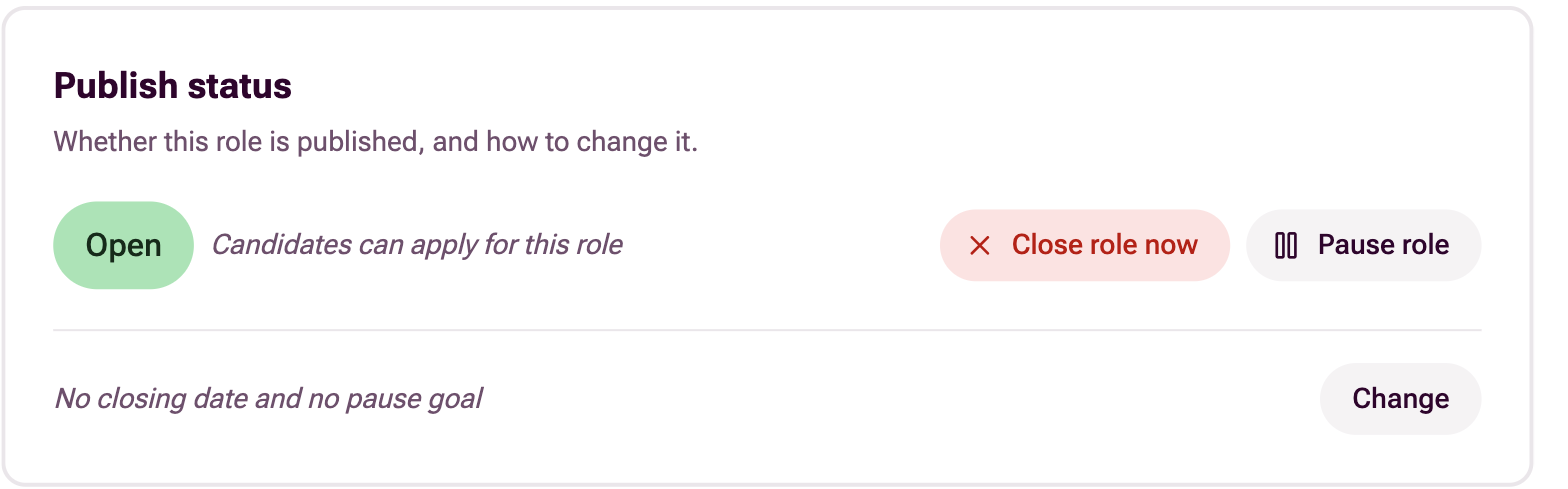
A role can also close on its own: if it passes a deadline you’ve set, if it reaches a shortlist limit you’ve set, or through your ATS. If a role closed because it passed its deadline, moving the deadline to a future date or removing it altogether will reopen it.
Archiving is separate from closing, and comes after it. Archiving takes a role out of your active lists, and you have to close a role before you can archive it. It is reversible: restoring an archived role brings it back as a closed role, ready to reopen if you need it again.
Need a hand?
Get in touch with your First contact, or at support@first.cx