
Add a new role
There are three ways to get a role into First, and a good reason why some fields on it might refuse to budge.
There are three ways to add a role to First. Which one suits you best depends mostly on whether the role already exists somewhere else, in your ATS or as another role you have already set up.
You give it a job title, then, if you want, pick a kit to apply settings you have already agreed and want to reuse across roles. The job description, the requirements, the screening criteria and the questions all come later, in the role’s settings.
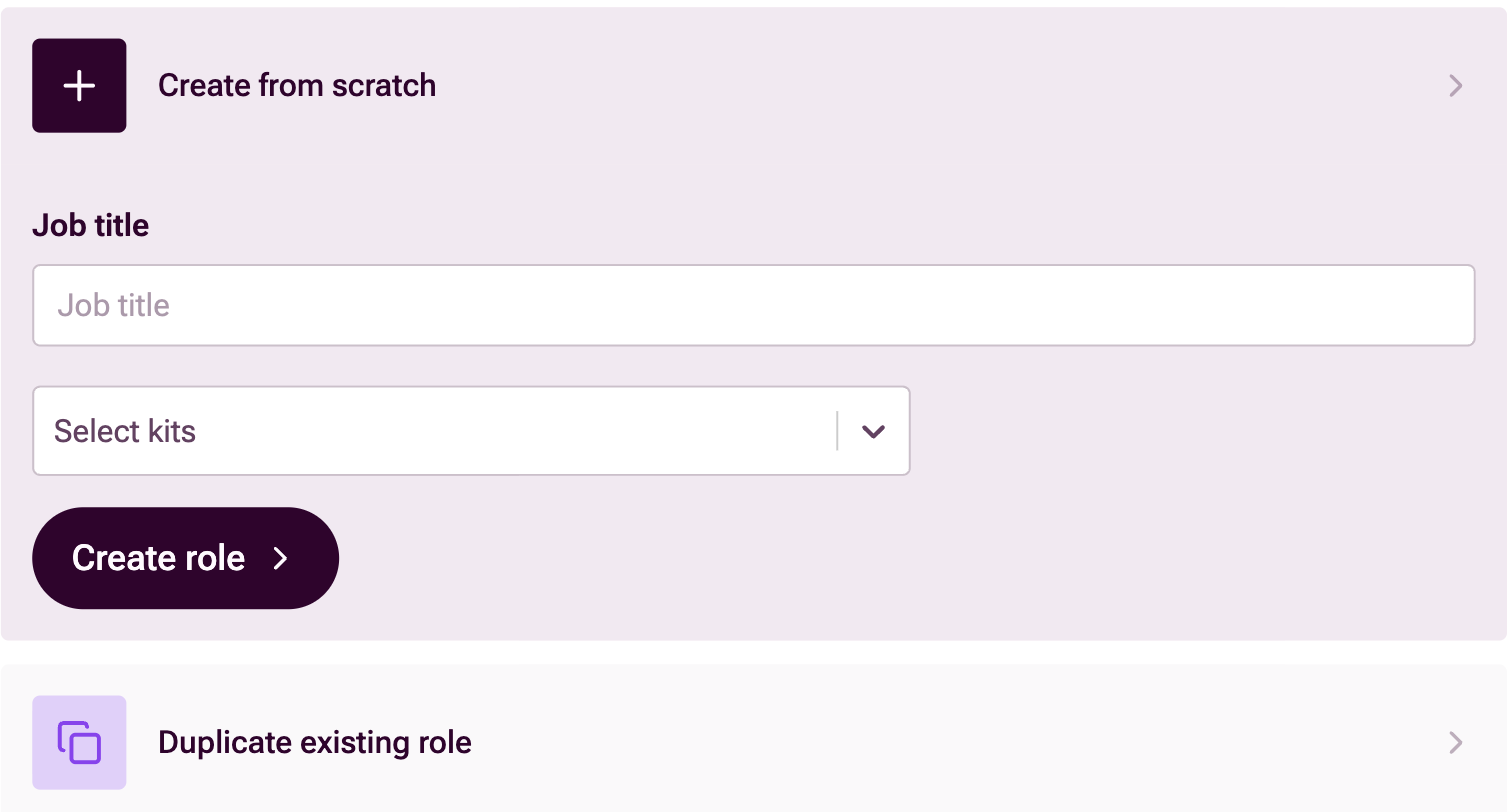
This is the right route when the role does not already exist in an ATS.
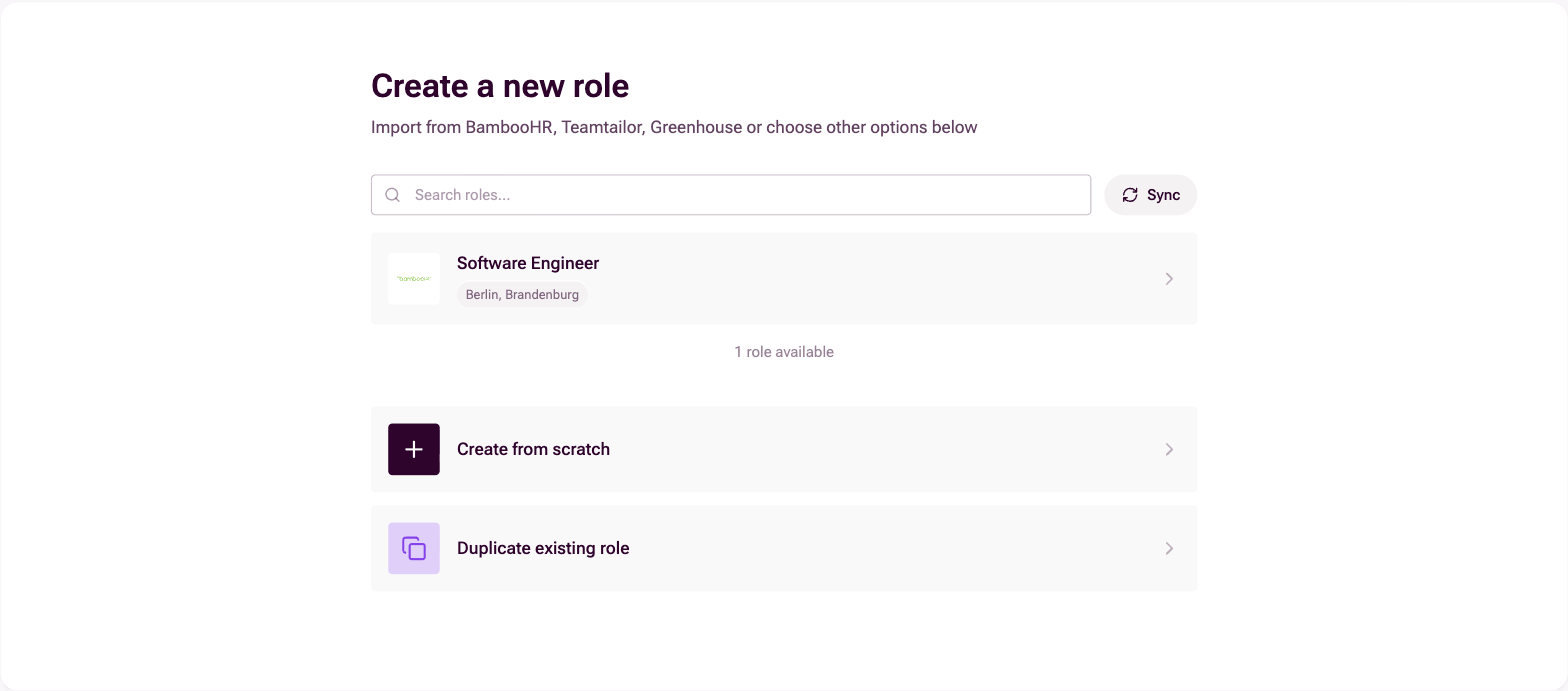
This needs a connected ATS. When you open the Create a new role screen, the jobs First can see in your ATS are already listed at the top, with a search box and a Sync button beside it to pull in anything new. Pick the job you want from that list, and it arrives already carrying the details your ATS holds, so there is less for you to type.
Some fields then cannot be edited in First. The last section on this page explains why, and what to do about it.
Search your existing roles and pick the one you want to copy. The copy brings that role’s screening criteria and its questions with it, which is the whole point: you are not rebuilding a setup you already spent time tuning.
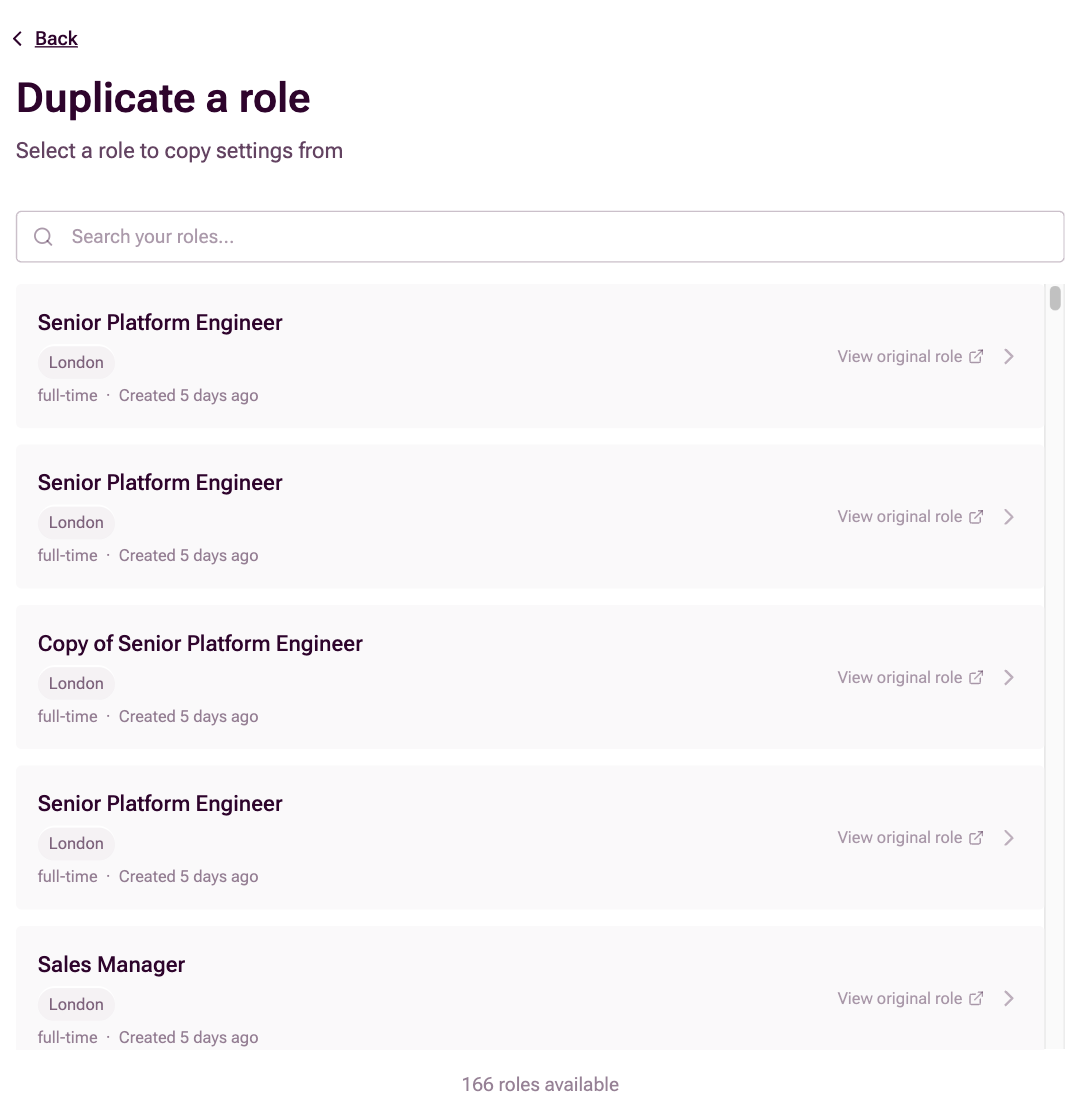
A few things are deliberately reset so that nothing happens by accident. The copy is renamed so you can tell it apart from the original, it arrives as a draft, it has no applications sitting against it, auto-shortlisting is switched off, and it is not linked to the original’s job in your ATS.
This is the right choice when you are hiring for the same shape of role again.
If you have landed here because something would not let you type into it, the plain answer is this: the role came from your ATS, and your ATS is still keeping it up to date. Those fields belong to the ATS. If First let you change one here, the next sync would simply wipe out what you typed.
So the fix is to change it in your ATS, where it will flow back into First on the next sync.
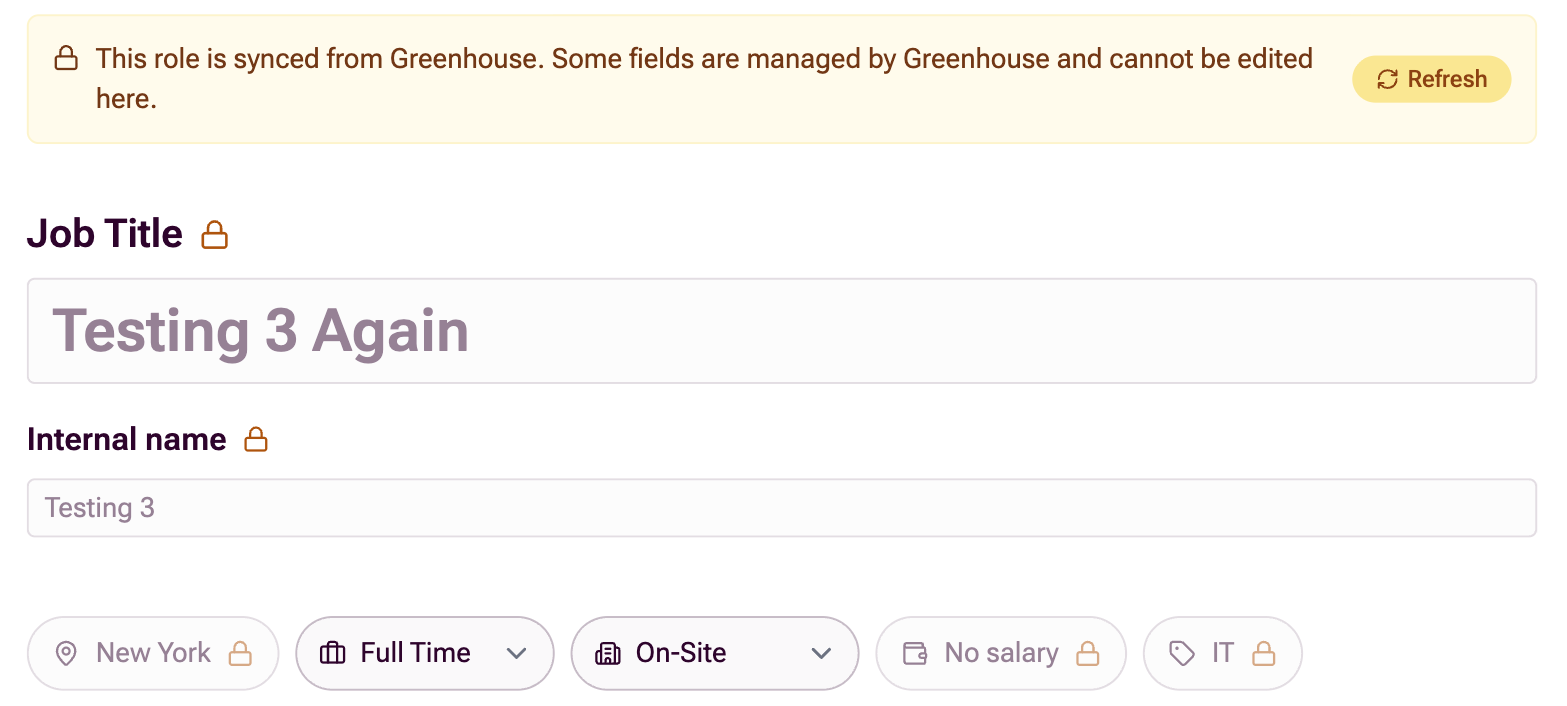
This only happens to a role that came from an ATS and still has auto-sync switched on. A role you built yourself in First, or one where auto-sync is off, is always fully editable, whatever its origin.
Which fields actually lock depends on which ATS you use. The fields that can lock are the job title, the job description, the internal reference, the location, whether it is on-site, hybrid or remote, the employment type, the department or category, the salary, the short call to apply, the external link, and the hiring team.
The range between systems is wide. BambooHR only locks the job title, location and hiring team, while Workable and Bullhorn lock most of that list. A custom integration locks nothing at all.
Once your role is in First, the natural next step is defining your application process, where you decide what you ask candidates for and what First screens them against.
Need a hand?
Get in touch with your First contact, or at support@first.cx