
Review candidates
How First scores and sorts your applicants, and how to check it is doing it the way you expect.
Once your role is live and candidates start applying, First screens each one against the criteria and questions you set up on the role. This guide covers what happens next: how candidates are scored and sorted, and how to keep an eye on it while it settles in.
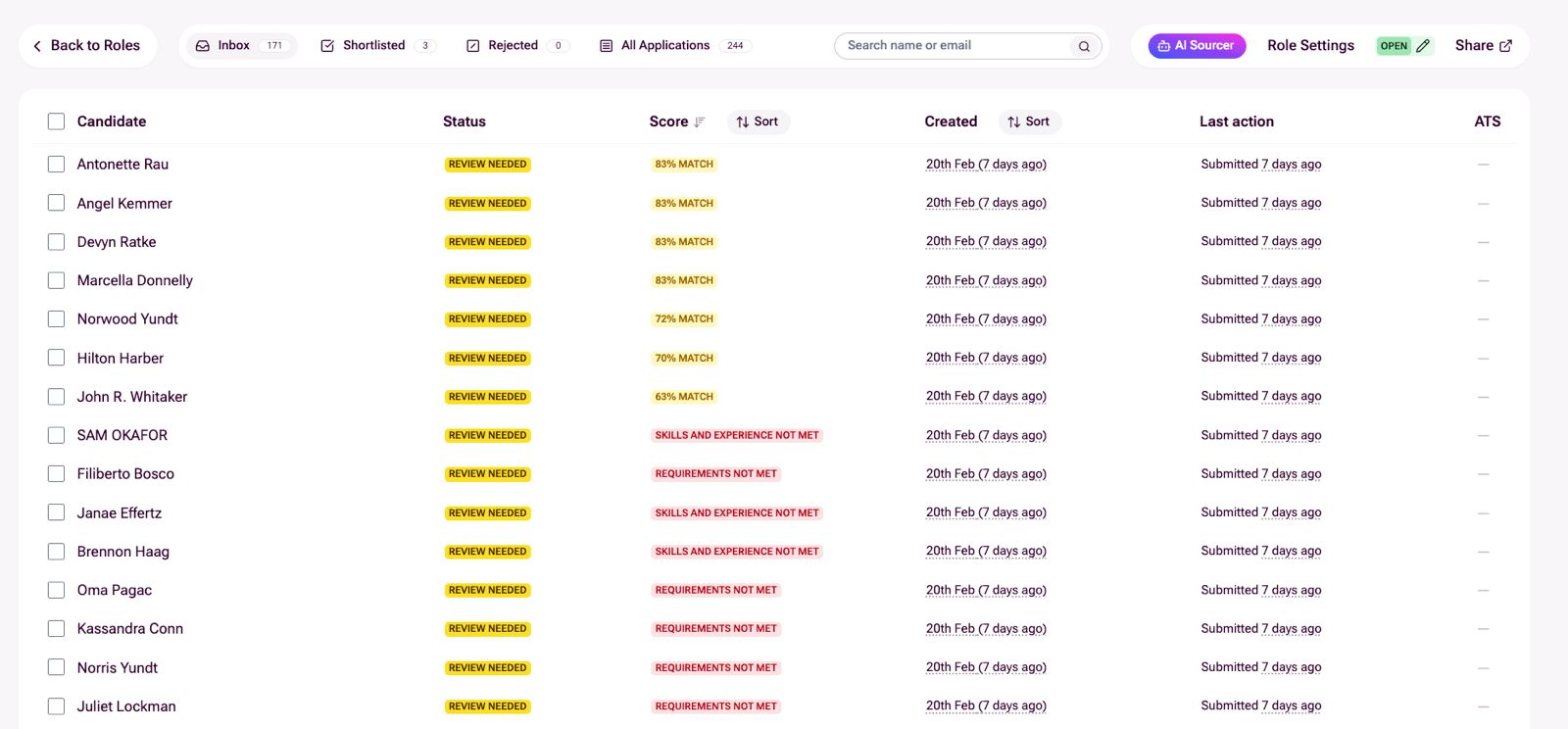
Candidates who apply are screened against everything you’ve configured: requirements, skills, and question responses. Each candidate receives a score and is sorted automatically:
- Shortlist: candidates who meet all your shortlist criteria are automatically shortlisted when auto-shortlisting is turned on.
- Inbox: everyone else appears in an ordered list, ranked from strongest to weakest.
- Not a fit: anyone missing minimum requirements is flagged as not a fit.
From there, your candidates are ready for you to manage and prioritise your time with the strongest applicants first. If the role is connected to an ATS, all actions sync back automatically.
When you shortlist a candidate, they move to the equivalent shortlisted stage in your ATS. When you reject a candidate, they’re rejected there too.
Any changes you make to your criteria can reassess all existing candidates, so rankings always reflect the latest setup. Use this to refine as you go.
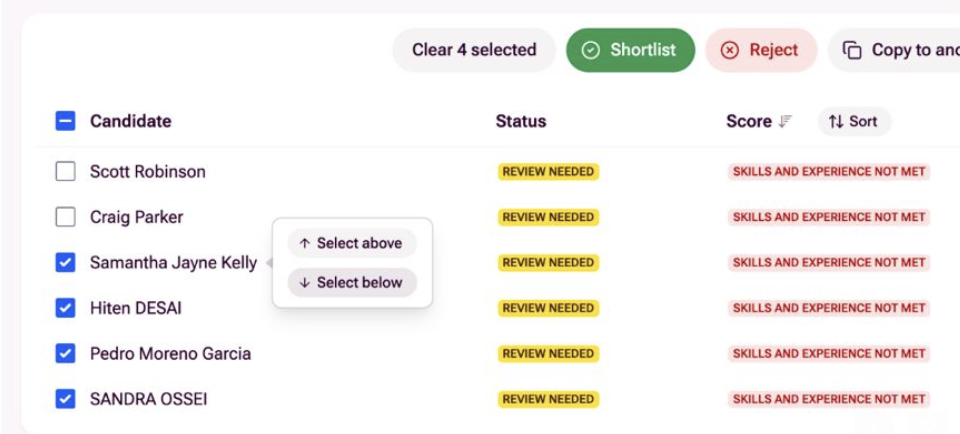
You can also select all candidates below a certain line and reject them in bulk. Use “Select below” to highlight everyone from that point down, then hit Reject to clear them out in one go. As seen below:
When auto-shortlisting is turned on, candidates meeting all your shortlist criteria are moved straight to the shortlist without manual review.
Calibration mode is on by default. It pauses auto-shortlisting after a set number of candidates (default: 5) have been shortlisted. This gives you a chance to review the first batch, check the criteria are working as expected, and make adjustments before the rest flow through.
Once you’re happy with the results, turn off calibration mode and auto-shortlisting will continue without pausing. You can also turn off auto-shortlisting entirely if you prefer to review every candidate manually. All applications will arrive in your inbox instead.
Any questions or suggested improvements for the guide?
Get in touch at support@first.cx