
Define application process
A step-by-step guide to setting up AI screening on a role, whether it comes from your ATS or was created directly in First.
First screens every applicant against your criteria automatically. Your team spends time interviewing, not sifting through CVs.
Before you start, you should already have the role set up, with its job description, either in your ATS or created directly in First.
This guide covers what’s left: configuring your AI screening criteria and questions, and reviewing candidates and refining criteria.
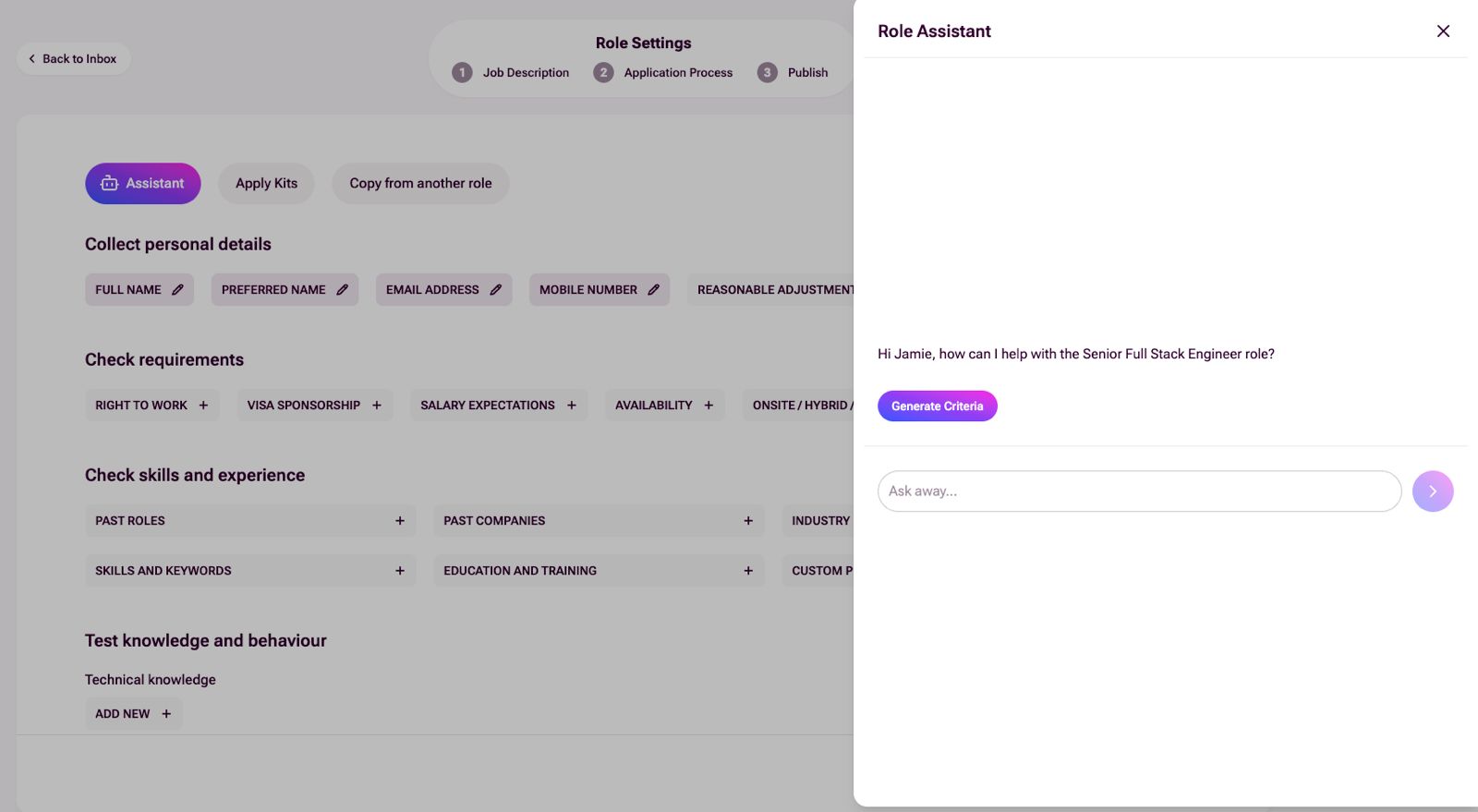
This is where you set up the criteria that every candidate is assessed against: requirements, skills, experience, and screening questions. Everything below happens within the Application Process page shown here, so this is the only screen you need to work with.
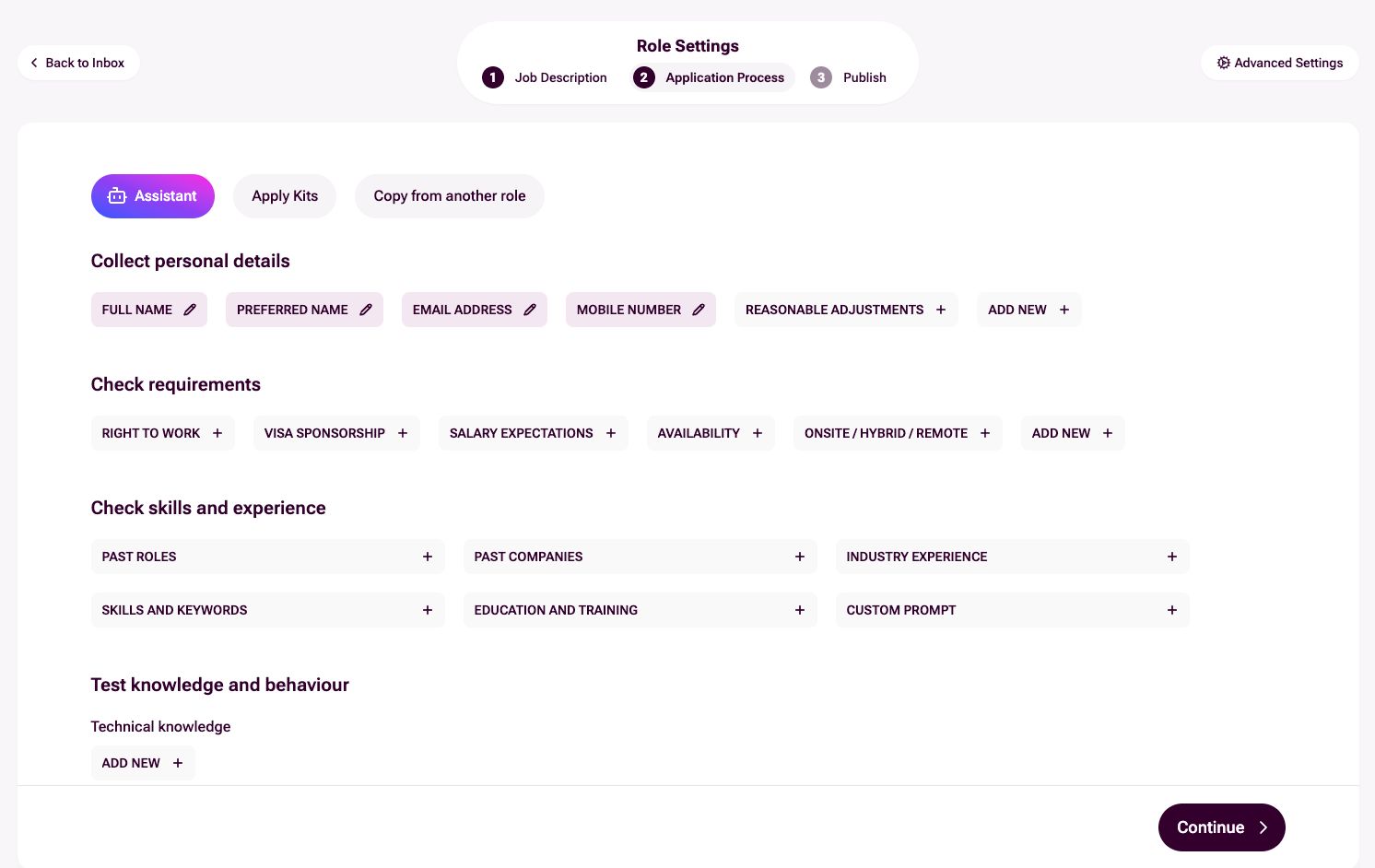
Instead of configuring everything manually, the AI Assistant in Role Settings can read your job description and generate criteria and questions for you.
Use it from the start to get a solid foundation, or fire it up later to make changes to an existing setup. You can have a back and forth with it to sense check adjustments before committing.
Basic contact information collected from every candidate at the start of the application. Most of these are required by default: they’re needed to process applications and contact candidates. No scoring is applied to these responses.

👤 Full Name
Enabled by default. The candidate’s full legal name.
💬 Preferred Name
Enabled by default. The name the candidate prefers to go by.
📧 Email Address
Enabled by default. Used for all application communications and synced back to your ATS.
📱 Mobile Number
Enabled by default. Helpful if your team prefers to reach out by phone for shortlisted candidates.
♿ Reasonable Adjustments (optional)
Asks whether the candidate needs any reasonable adjustments during the application or interview process. This helps your team prepare accommodations in advance and demonstrates an inclusive hiring process from the start.
➕ Add New
Choose a prefilled question from the dropdown or build your own. To reiterate, no scoring is applied to responses.
Logistical essentials checked upfront so unviable candidates are flagged early. Include as many as you need.

📍 Right to Work
Checks the candidate has the legal right to work where the role is based. Filters out candidates who’d need sponsorship you can’t offer.
🛂 Visa Sponsorship
Asks if the candidate requires visa sponsorship. Use alongside Right to Work for a full eligibility picture.
💰 Salary Expectations
Captures salary expectations upfront. Flags misalignment early when the role has fixed banding or a tight budget.
📅 Availability
Asks about notice period and earliest start date. Useful when you need someone by a specific date or want to prioritise candidates who can start sooner.
🏢 Onsite / Hybrid / Remote
Confirms the candidate’s working model preference. Filters out mismatches when the role has a strict location requirement.
➕ Add New
Add custom requirements, e.g. security clearance, driving licence, or anything else specific to the role. These can be single or multiple choice.
Priority levels
Each criterion below can be assigned one of these levels.
This is where you define the experience and expertise the role requires. The AI reads each candidate’s CV and evaluates them against the criteria you set. Each criterion has a priority level that determines how it affects scoring.

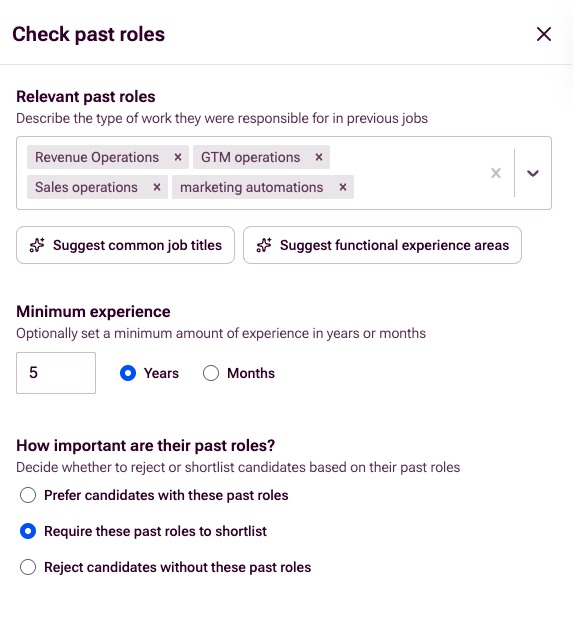
Checks whether a candidate has experience in specific roles. This isn’t a keyword match. The AI infers relevant experience, including similar and equivalent job titles.
Define the role: Type the job title you’re looking for. Use the suggest function to surface common titles or functional areas. The AI can also suggest similar titles to broaden or narrow your search.
Set minimum experience: Choose the minimum time in this type of role, in years or months. Set to 0 if you don’t mind how long. The AI will still check for relevant experience, just without a minimum threshold.
Set a priority level: Must have, Required to shortlist, or Preferred.
You can add multiple past role criteria per role, e.g. one required and one preferred.
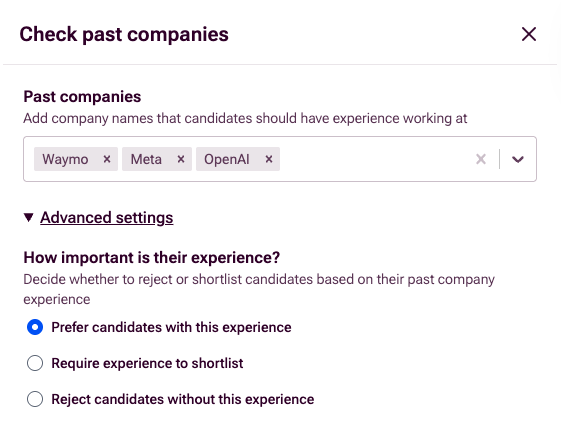
Checks whether a candidate has worked at specific companies. Enter the company names you want to see on their CV. The AI checks their work history for matches. For a type of company rather than a name, such as a consultancy or an agency, use Industry Experience instead.
Set a priority level: Must have, Required to shortlist, or Preferred.
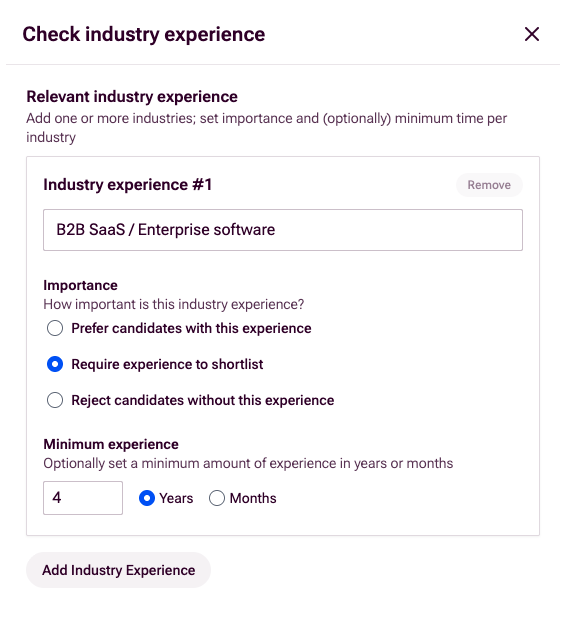
Checks whether a candidate has worked in specific industries or sectors, or at a particular type of company. Unlike Past Companies, this is about the kind of organisation, not a named employer.
Add industries: Add one or more industries relevant to the role. Each is a separate criterion with its own importance level, e.g. require Automotive, prefer Robotics.
Set minimum time: Optionally set a minimum in years or months, e.g. “1+ year in Automotive”.
Set a priority level: Must have, Required to shortlist, or Preferred.
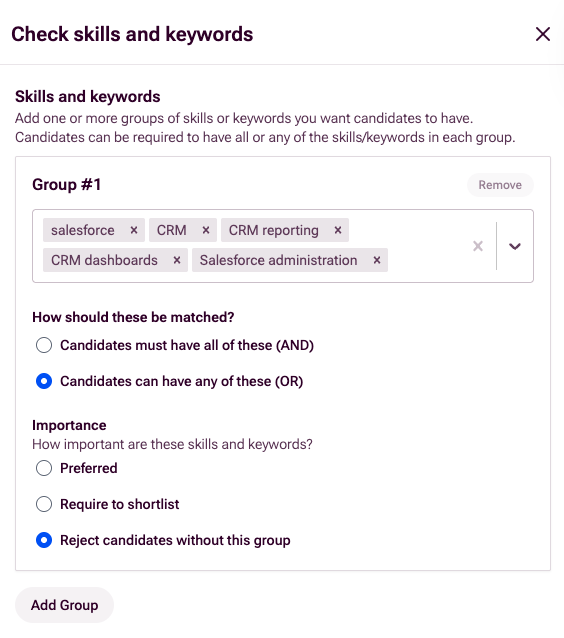
Checks a candidate’s CV for specific skills, tools, languages, frameworks, or methodologies. Skills are organised into groups. You can have as many groups as you need.
Create a group: Add the skills you want to check for. For example, one group might be “Python, Machine Learning, Statistical analysis” and another “MLflow, Airflow, Spark”.
AND vs OR matching: For each group, choose how skills are matched:
- OR: candidate needs at least one from the group. Use when skills are interchangeable, e.g. “Python OR R OR Julia”.
- AND: candidate needs every skill in the group. Use when all are genuinely required together.
Note: Think carefully about what you group together. A broad OR group like “Python OR Excel OR SQL” would match a data engineer and an office administrator equally. If those candidates aren’t interchangeable for the role, they probably shouldn’t be in the same group.
Set a priority level: Must have, Required to shortlist, or Preferred.
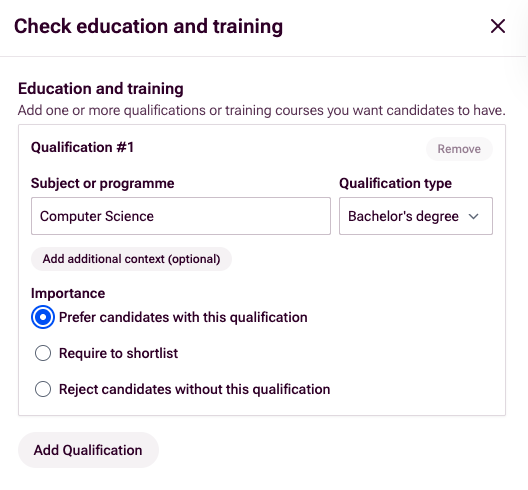
Checks whether a candidate has specific qualifications or training. You can add multiple, each with its own importance level.
Subject or programme: What the qualification is in, e.g. “Computer Science”, “Data Engineering”, or “CIPD Level 5”.
Qualification type: Select the level: Bachelor’s degree, Master’s degree, PhD, Certification, Training, or Bootcamp.
Additional context: Optional free-text for specifics, e.g. “from a Russell Group university” or “must include a placement year”.
Set a priority level: Must have, Required to shortlist, or Preferred.
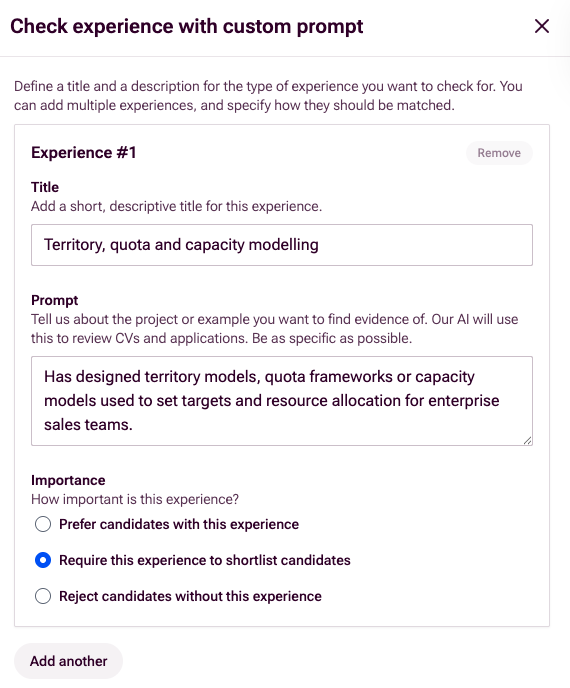
A catch-all for experience that doesn’t fit the other categories. Describe what you’re looking for in plain language and the AI reviews each candidate’s CV for evidence of it.
Title: A short label for this criterion, e.g. “Production embedded systems” or “Platform migration leadership”.
Prompt: Describe the experience you want evidence of. Be specific, e.g. “Experience building and deploying autonomous vehicle software in production” or “Has led a team through a major platform migration”.
Set a priority level: Must have, Required to shortlist, or Preferred.
You can add multiple custom prompts, each checking for something different with its own priority level.
Priority levels
Each criterion above can be assigned one of these levels.
Screening questions that go beyond what’s on a CV. These test how a candidate thinks, how they approach problems, and whether they have the depth the role needs. You add open-ended questions that candidates answer in their own words as part of the application. The AI evaluates each response against the intent of your question and factors it into the candidate’s overall score.
We’d recommend 2 to 3 questions per role. That’s enough to get meaningful signal without making the application too long. Think about the questions you’d normally ask at phone screen or first interview, and move them here instead.

⚙️ Technical Knowledge
Test for specific technical depth. First you’ll choose a format:
Conversational, AI-led interview on hard skills
A conversational, AI-led interview on hard skills. The candidate answers your question, and the AI follows up to probe deeper. It is similar to a live phone screen, but automated.
When you set up an AI Interview, you’ll fill in four areas:
1. What do you want to test: Describe the skills you want the AI interviewer to assess. This gives the AI context on what to probe for, e.g. “real-time systems design” or “data pipeline architecture”.
2. Select a question: The AI generates interview questions based on the job spec and the context you provided. Pick one, or write your own if you’d prefer something more specific.
3. Prompt guidance: Three fields that shape how the interview is scored:
- Candidate guidance: context the AI can share with the candidate to help them answer accurately.
- Acceptable answer: describe what a satisfactory response looks like, so the AI knows the minimum bar.
- Great answer: a customisable scoring rubric that defines what an outstanding response looks like.
4. Advanced settings: This is where you set the priority level: Must have, Required to shortlist, or Preferred.
Candidate reviews code and identifies issues
The candidate reviews a code snippet and identifies issues. The AI evaluates their response for technical understanding, not just whether they spotted a specific bug. Useful for roles where reading and reasoning about code matters as much as writing it.
- 1. Skills to test: Pick a skill for the code review, e.g. “Python”, “React”, or “SQL”.
- 2. Difficulty: Choose a level: Junior, Intermediate, or Senior. This controls the complexity of the code snippet generated.
- 3. Review and edit: Hit Generate and the AI will create the question. You can enable strict mode, which tracks tab switches, copy and paste, and other activity during the review.
- 4. Great answer criteria: Describe what a great answer looks like. This tells the AI what to reward when scoring responses.
- 5. Snippet and answers: Fine-tune any details around the question, code snippet, or expected answers.
- 6. Advanced settings: Set the priority level: Must have, Required to shortlist, or Preferred.
🤝 Behaviours and Questions
Understand how someone works in practice: their problem-solving style, communication, and approach under pressure.
Open-ended questions on problem-solving, communication, and approach
Open-ended questions that reveal how a candidate thinks and operates, following the same flow as AI Interview. For example: “Share an experience where you worked with unclear or incomplete requirements. How did you approach the situation and ensure successful delivery?”
1. What do you want to test: Describe the behaviours or soft skills you want the AI to assess, e.g. “collaboration under pressure” or “stakeholder management”.
2. Select a question: The AI generates questions based on the job spec and context you provided. Pick one, or write your own.
3. Prompt guidance: Three fields that shape how the interview is scored:
- Candidate guidance: context the AI can share with the candidate to help them answer accurately.
- Acceptable answer: describe what a satisfactory response looks like, so the AI knows the minimum bar.
- Great answer: describe what an outstanding response looks like.
4. Advanced settings: Set the priority level: Must have, Required to shortlist, or Preferred.
Once your role is live and candidates start applying, First screens them against what you have set up here, giving each one a score and sorting them automatically. See reviewing candidates for how that works, and how calibration mode lets you check it before the rest flow through.
Any questions or suggested improvements for the guide?
Get in touch at support@first.cx